# Website Editor Guide
This guide describes how to edit or update content of the website https://www.asterics.eu (opens new window).
Editors can improve, correct and adapt the contents of this website in two ways:
- online, or
- offline
# Online
You can edit the contents of this website online, or remotely, via GitHub.
The easiest way to locate the files in their source repository, is by clicking the link Edit this page on GitHub provided within every page of this website.
After clicking the link, a website at GitHub is opened, displaying the relevant file and allowing to perform the required changes and committing immediately.
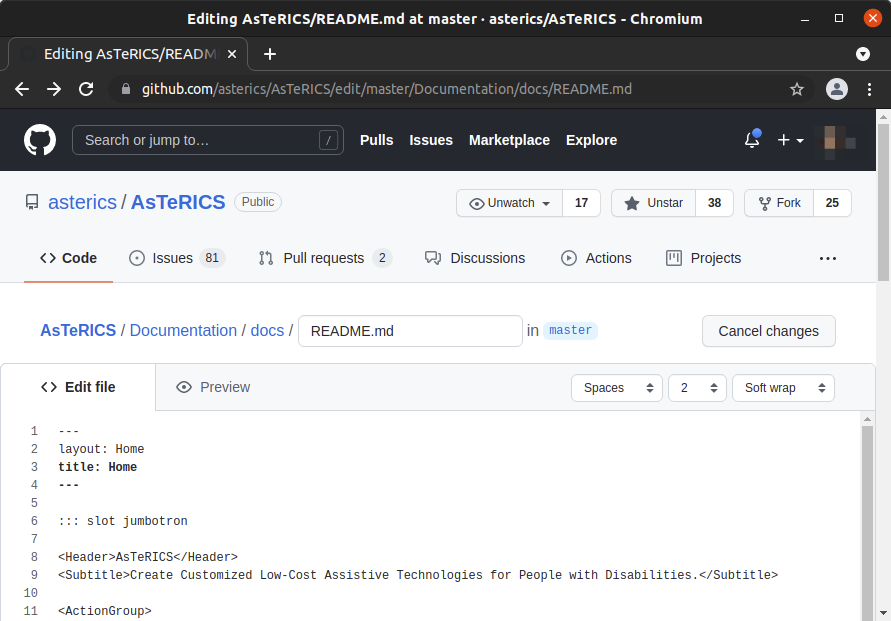
Testing the changes is not possible when editing the files remotely, but GitHub provides a simple preview function, which understands basic markdown syntax.
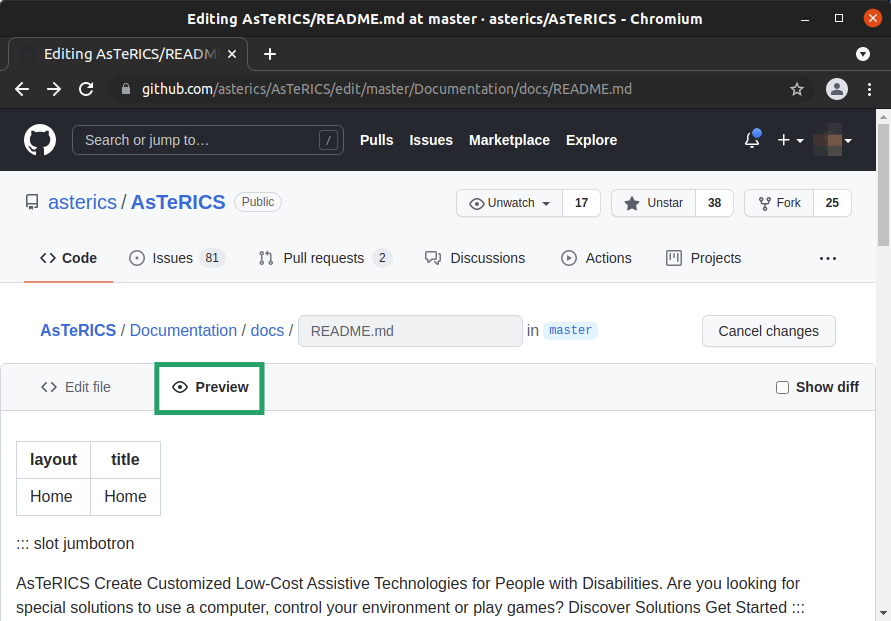
Note, however, that GitHub supports only a subset of the markdown features described in the markdown guide of this website. The preview does not show the same style of the page as shown on https://www.asterics.eu (opens new window).
After you finish editing a file, you can commit your changes to the repository.
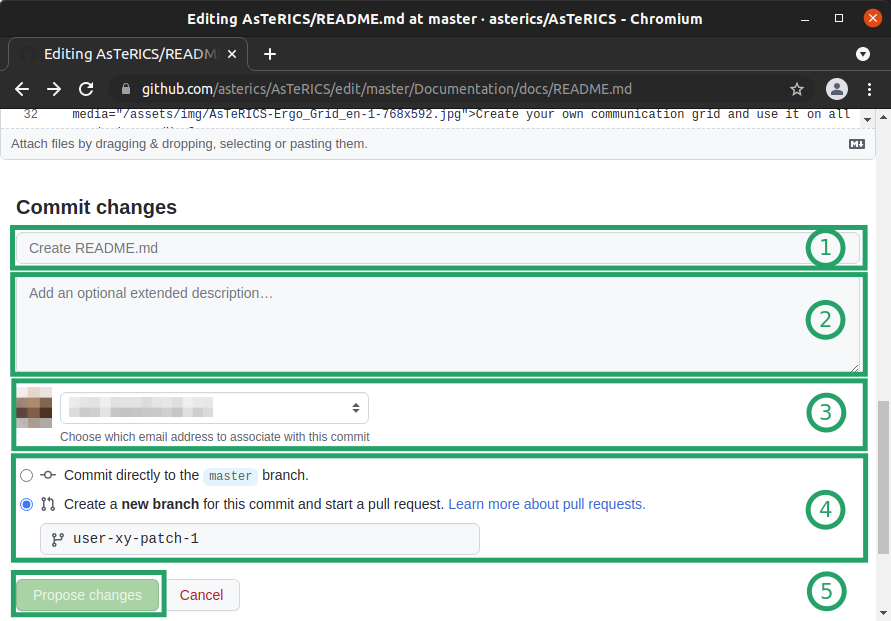
At the bottom of the page you will find the Commit changes section. Perform the following steps to save your changes.
- Enter your commit message
- Optionally, provide a detailed description of the current changes
- Define a GitHub profile as the author of the commit
- Create a new branch , if you don’t have write access to the repository, and start a pull request
- Propose the changes to the owners of the repository
# Uploading Files
GitHub allows you to upload files and pictures, by dragging & dropping, selecting, and pasting them.
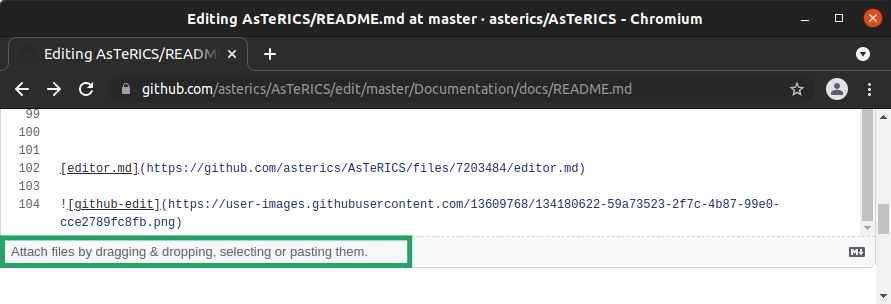
The above screenshots shows GitHub’s behavior when adding files (editor.md) and pictures (github-edit.png).
Files are stored in the respective repository directly.
However, pictures are stored in user specific locations.
You can keep (and reuse) this link, without the need to add the picture to the source repository.
Hint
Pictures uploaded to githubusercontent.com are added, by the developers of this website, to the source repository at a later point, when merging the changes to the main branch.
Note, that you can’t determine their path or location using this view.
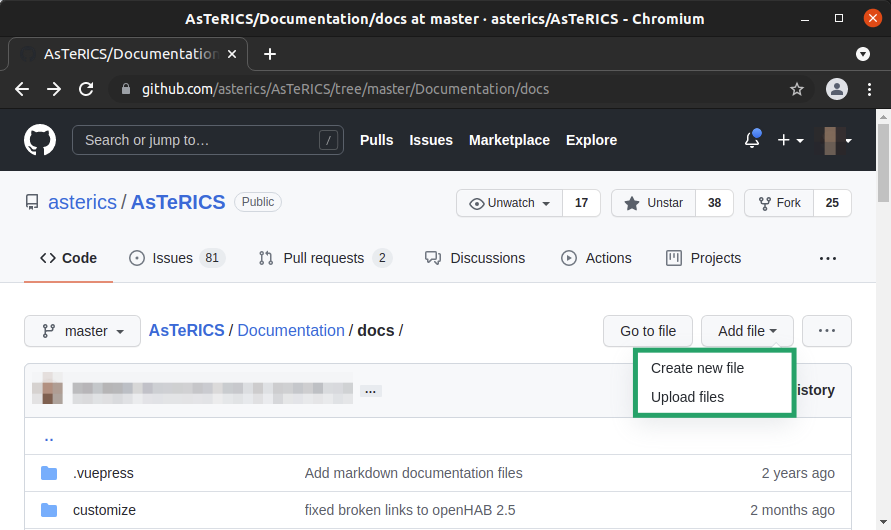
Alternatively, you can open the folder in a repository via GitHub, like in the following screenshot, by clicking the directory.
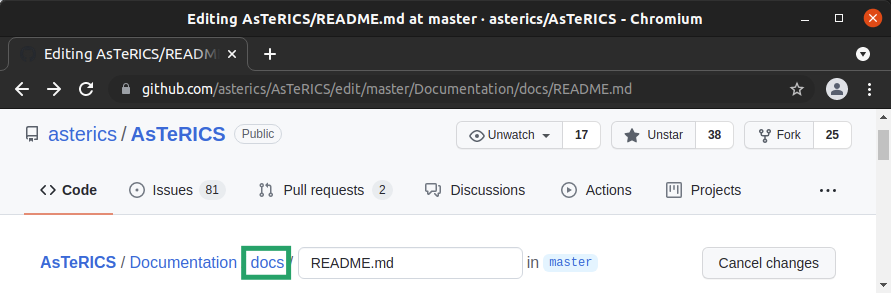
Afterwards you can create new files or upload multiple files in the opened directory and thereby define the path or location of the uploaded files in the repository.
# Web-based editor
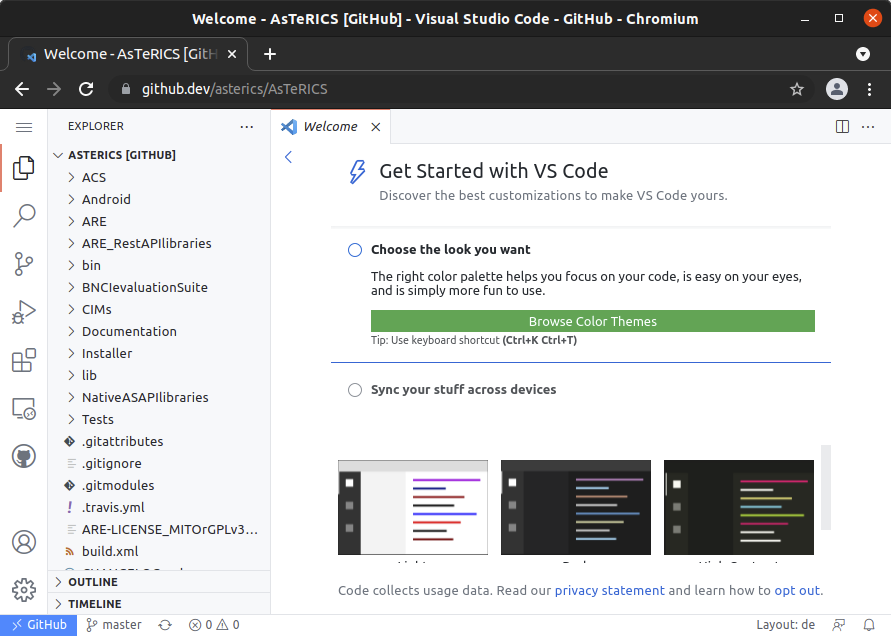
GitHub provides a web-based editor (opens new window) that allows editing files remotely, but with a similar experience to working locally.
To edit the files of a GitHub repository online, you can press . on the main page of the repository.
GitHub displays the files inside the web-based editor, allowing you to edit several files at once, remotely.
# Offline
To edit the contents of this website offline, or locally, you need to download the source repository (opens new window). All required steps are described in the developer guide.
After cloning the source repository and installing all required tools, run following commands.
$ yarn docs init    # Initialize git submodules
$ yarn docs setup   # Create folder docs/ containing all files
$ yarn dev          # Build website and host files with the development server
Detailed Instructions
For details, please refer to the developer guide.
With the last command, a development server is started hosting the files locally. You should see a similar output:
success [13:13:42] Build 6b0cef finished in 400 ms! ( http://localhost:8080/ )
Afterwards you need to perform the desired changes within the files inside docs/.
When saving changes inside those files, a new build is triggered and the content displayed in the browser is updated, automatically.
After finishing editing the files, you need to create a pull request or commit and push your changes to the source repository. Please check the developer guide for this purpose.
# Publishing Updates
You can’t publish new builds of the website by yourself. The developers of this website integrate incoming pull request regularly. After adding the pull request, the website is built and published with the most recent content.